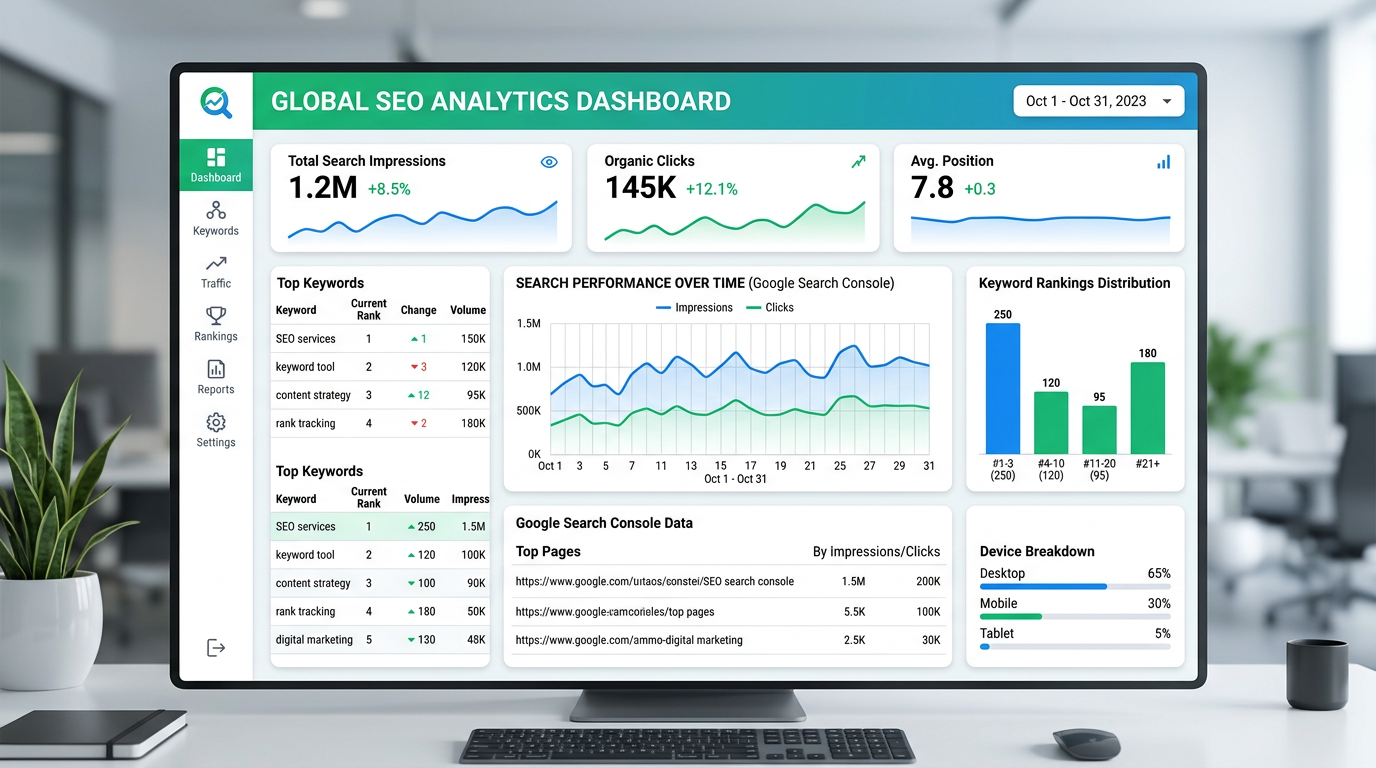
The SEO Analyst module lets your AI agent monitor your website’s search performance — tracking keywords, impressions, clicks, and indexing issues automatically. It connects to Google Search Console using a service account, so your agent can pull data without needing your personal Google login.
To set this up, you need to provide one credential through the Integrations page in your AgentGrow dashboard:
What You Will Need
| Field | What it is |
|---|---|
| GOOGLE_SERVICE_ACCOUNT_JSON | The full JSON contents of a Google Cloud service account key file that has access to your Search Console property |
Prerequisites
- A Google account (the same one you use for Google Search Console)
- Your website verified in Google Search Console (if not yet, Google will walk you through verification when you add a property)
- A web browser — no coding or command-line knowledge required
Part 1 — Create a Google Cloud Project
If you already have a Google Cloud project you want to use, skip to Part 2.
Go to Google Cloud Console
Open console.cloud.google.com and sign in with your Google account.
Create a new project
Click the project dropdown at the top of the page (it may say “Select a project” or show an existing project name), then click New Project.
- Project name: something descriptive like
agentgrow-seo - Organization: leave as default (or “No organization”)
Click Create. Google will create the project in a few seconds. Make sure it is selected as your active project (check the dropdown at the top).
Part 2 — Enable the Search Console API
Open the API Library
In the Google Cloud Console, navigate to APIs & Services → Library (or use the search bar at the top and type “API Library”).
Find and enable the API
Search for “Google Search Console API”. Click on it, then click the Enable button.
Part 3 — Create a Service Account & Download the Key
Go to Credentials
Navigate to APIs & Services → Credentials.
Create a service account
Click Create Credentials at the top, then select Service account.
- Service account name: something like
agentgrow-seo - Service account ID: auto-generated from the name (e.g.
[email protected])
Click Create and Continue.
Skip optional steps
The next two steps (“Grant this service account access to project” and “Grant users access to this service account”) are optional. Click Continue and then Done.
Create a JSON key
You will see the service account listed on the Credentials page. Click on the service account email to open its details.
- Go to the Keys tab
- Click Add Key → Create new key
- Select JSON and click Create
A JSON file will download to your computer. It will look something like:
Note the client_email value — you will need it in the next step.
Part 4 — Grant Search Console Access to the Service Account
Open Google Search Console
Go to search.google.com/search-console and select the property (website) you want your agent to monitor.
Open Users and Permissions
In the left sidebar, click Settings, then click Users and permissions.
Add the service account
Click the Add user button. Enter the service account email from the JSON file (the client_email field). It will look like:
Set the permission level
Select Full permission (recommended) so your agent can view all search analytics data. Restricted also works if you prefer read-only access to most data.
Click Add.
Part 5 — Enter Credentials in AgentGrow
Open the JSON file
Open the downloaded JSON key file in any text editor (Notepad, TextEdit, VS Code, etc.). Select all the text and copy it.
Open your Integrations page
Log in to your AgentGrow dashboard at agentgrow.io/user/integrations.
Configure SEO Analyst
Find the SEO Analyst module and click Configure (or Reconfigure if already set up). Paste the entire JSON contents into the GOOGLE_SERVICE_ACCOUNT_JSON field.
Click Save & Restart Agent. Your agent pod will restart in about 30 seconds.
Verify it works
After the restart, your agent will begin analyzing your search performance data. Check the Dashboard for SEO-related activity updates. Your agent will report on keyword rankings, impressions, click-through rates, and indexing issues.
Troubleshooting
Agent says “permission denied” or “403 Forbidden”
The service account email has not been added to your Search Console property, or it was added to the wrong property. Double-check:
- Go to Search Console → Settings → Users and permissions
- Confirm the service account email is listed
- Make sure you are looking at the correct property (domain or URL prefix)
Agent says “Search Console API not enabled”
The API was not enabled in your Google Cloud project. Go back to Part 2 and make sure you clicked Enable on the Google Search Console API page. Make sure you are in the correct project (check the project dropdown at the top of Google Cloud Console).
The JSON is rejected as invalid
Make sure you copied the entire contents of the JSON file, including the opening { and closing } braces. Common mistakes:
- Missing the first or last character when copying
- Accidentally adding extra spaces or characters before or after the JSON
- Copying from a PDF or formatted document that added invisible characters
Open the file in a plain text editor (not Word or Google Docs) to get clean text.
I have multiple websites — can my agent monitor all of them?
The service account needs to be added as a user to each Search Console property you want monitored. Repeat Part 4 for each property. The same JSON key file works for all of them — you only need one service account.
How do I rotate or update the service account key?
In Google Cloud Console, go to your service account, open the Keys tab, click Add Key → Create new key → JSON. Download the new file, then go to agentgrow.io/user/integrations, click Reconfigure on SEO Analyst, paste the new JSON, and save. You can then delete the old key from Google Cloud Console.
Do I need a billing account for Google Cloud?
No. The Search Console API is free to use and does not require a billing account. Creating a Google Cloud project and service account is also free.