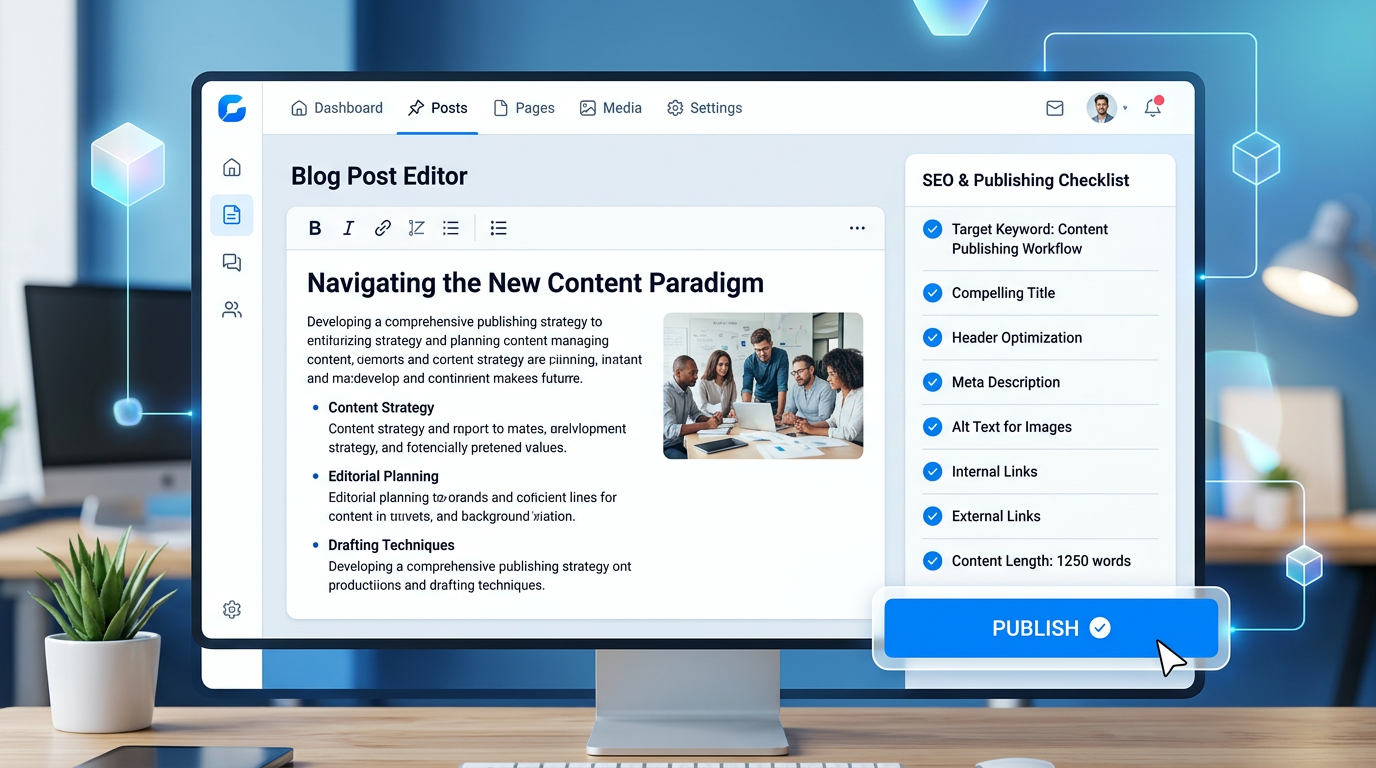
The Blog Publisher module lets your AI agent write and publish SEO-optimized blog posts directly to your website. Under the hood, it uses GitHub Pages — a free static hosting service from GitHub. Your agent commits new posts to a repository, and GitHub automatically publishes them to the web.
To set this up, you need to provide two things through the Integrations page in your AgentGrow dashboard:
What You Will Need
| Field | What it is |
|---|---|
| GITHUB_REPO_URL | The HTTPS URL of the GitHub repository where blog posts will be published |
| GITHUB_PAT | A Personal Access Token that gives your agent permission to push commits to the repository |
Prerequisites
- A GitHub account (free at github.com)
- A web browser — no coding or command-line knowledge required
Part 1 — Create a GitHub Repository
If you already have a GitHub Pages repository for your blog, skip to Part 2.
Sign in to GitHub
Go to github.com and sign in (or create an account if you do not have one).
Create a new repository
Click the + icon in the top-right corner, then New repository.
- Repository name: choose a name like
my-business-blogoryourdomain-blog - Visibility: select Public (required for free GitHub Pages)
- Initialize: check "Add a README file"
Click Create repository.
Enable GitHub Pages
In your new repository:
- Go to Settings (tab at the top)
- In the left sidebar, click Pages
- Under Source, select "Deploy from a branch"
- Set Branch to main and folder to / (root) or /docs
- Click Save
GitHub will display your site URL. It will look like:
Copy the repository URL
Go to the main page of your repository. Click the green Code button and copy the HTTPS URL. It will look like:
This is your GITHUB_REPO_URL.
Part 2 — Create a Personal Access Token (PAT)
A Personal Access Token lets your AI agent push blog posts to your repository without needing your GitHub password.
Open GitHub token settings
Go to github.com/settings/tokens. You can also get there by clicking your profile picture (top-right) → Settings → Developer settings (bottom of left sidebar) → Personal access tokens.
Choose token type
You will see two options. We recommend Fine-grained tokens for better security, but classic tokens also work.
Option A — Fine-grained token (recommended)
- Click Fine-grained tokens → Generate new token
- Token name: something like
AgentGrow Blog Publisher - Expiration: select 90 days or No expiration (your preference)
- Repository access: select "Only select repositories" and choose your blog repository
- Permissions: under Repository permissions, set:
- Contents: Read and write
- Metadata: Read-only (automatically selected)
- Click Generate token
Option B — Classic token
- Click Tokens (classic) → Generate new token → Generate new token (classic)
- Note:
AgentGrow Blog Publisher - Expiration: 90 days or No expiration
- Scopes: check repo (full control of private repositories)
- Click Generate token
Copy the token immediately
GitHub shows the token only once. Copy it now and save it somewhere safe. The token will look like:
(Fine-grained tokens start with github_pat_ instead.)
This is your GITHUB_PAT.
Part 3 — Enter Credentials in AgentGrow
Open your Integrations page
Log in to your AgentGrow dashboard at agentgrow.io/user/integrations.
Configure Blog Publisher
Find the Blog Publisher module and click Configure (or Reconfigure). Enter:
- GitHub Repo URL: the HTTPS URL from Part 1 (e.g.
https://github.com/yourusername/my-business-blog) - GitHub PAT: the Personal Access Token from Part 2
Click Save & Restart Agent. Your agent pod will restart in about 30 seconds.
Verify it works
After the restart, your agent will begin publishing blog posts on its next scheduled run. You can check the Dashboard for activity updates or visit your GitHub Pages URL to see published content.
Part 4 — Use a Custom Domain (Optional)
By default, your blog is served at yourusername.github.io/repo-name. If you want it on your own domain (e.g. blog.yourcompany.com):
Add a CNAME record
In your domain registrar or DNS provider, add a CNAME record:
| Type | Name | Value |
|---|---|---|
| CNAME | blog | yourusername.github.io |
Set the domain in GitHub
In your repository, go to Settings → Pages → Custom domain. Enter your domain (e.g. blog.yourcompany.com) and click Save. Check "Enforce HTTPS" once the DNS propagates (usually a few minutes).
CNAME file in your repository. Your agent will preserve this file when publishing new posts.Troubleshooting
My GitHub Pages site shows a 404
Check these settings in your repository under Settings → Pages:
- Source is set to "Deploy from a branch"
- The correct branch (main) and folder (/ (root) or /docs) are selected
- The repository is Public (GitHub Pages requires public repos on free plans)
After changing settings, wait 1–2 minutes for the site to rebuild.
Agent says "authentication failed" or "403 Forbidden"
Your Personal Access Token may have expired or lacks the right permissions. Generate a new token following Part 2 and make sure:
- Fine-grained token: Contents → Read and write permission is set for the correct repository
- Classic token: the repo scope is checked
Update the token in your Integrations page and click Save & Restart Agent.
Agent published but I do not see the post on my site
GitHub Pages takes a few seconds to rebuild after a push. If you still do not see the post after a minute:
- Go to your repository on GitHub and check if the new HTML file exists
- Check the Actions tab for any failed deployments
- Make sure the file is in the correct folder (
/docsif your Pages source is set to/docs)
How do I rotate or update my token?
Generate a new token on GitHub following Part 2, then go to agentgrow.io/user/integrations, click Reconfigure on Blog Publisher, paste the new token, and save. Your agent will use the new token after the restart.
Can I use a private repository?
Yes, but free GitHub accounts only get GitHub Pages for public repositories. If you have GitHub Pro, Team, or Enterprise, you can use private repos with Pages. Your agent works the same either way — only the repository visibility differs.