Overview
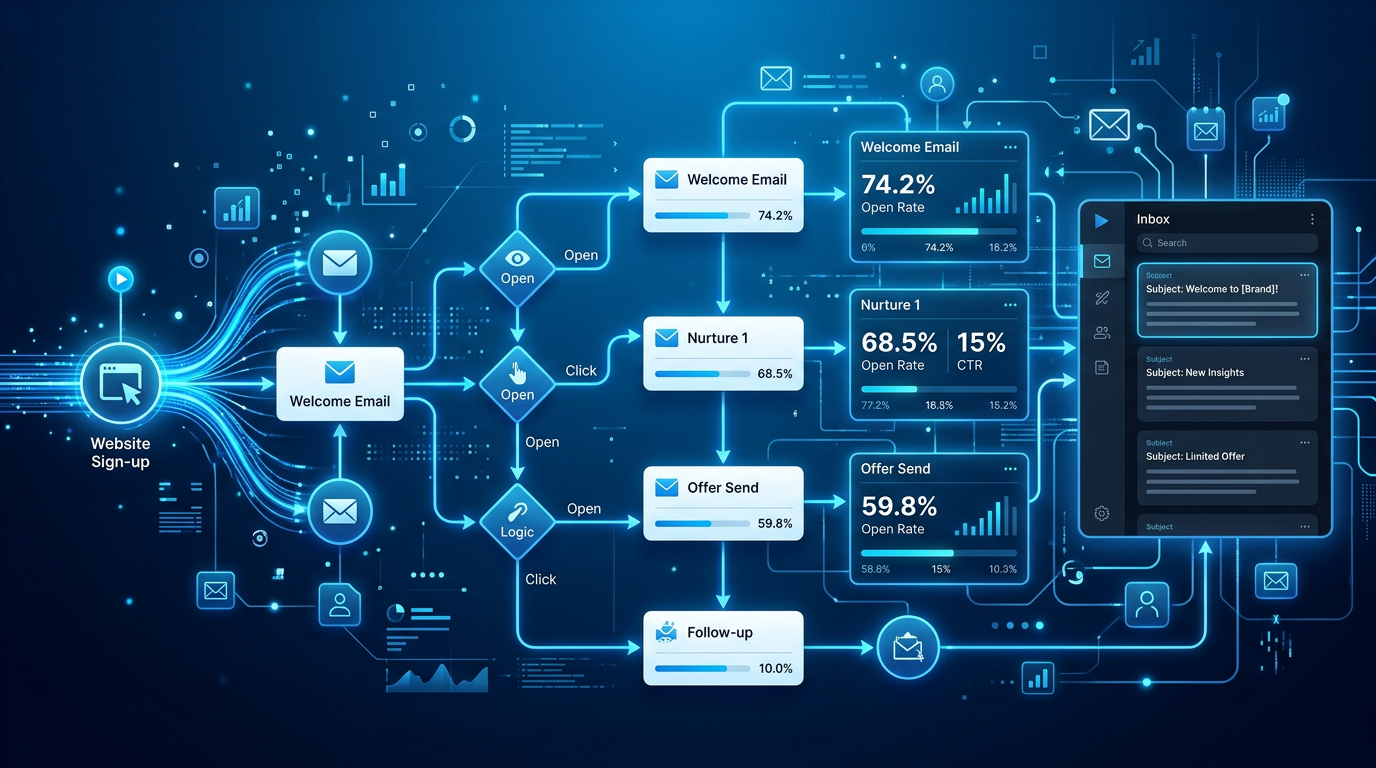
The Email Marketer module gives your AI agent the ability to send personalised prospect outreach, follow-up sequences, and lead nurture campaigns on your behalf — automatically, around the clock. It is available on the Growth tier and above.
Unlike social media integrations that require third-party developer apps, email is simpler: your agent just needs an SMTP connection to send from your domain. You have two ways to provide that connection.
Two Options: Platform Default vs. Custom SMTP
When you open the Email Marketer module on your Integrations page, you will see two configuration paths. Choose the one that fits your situation.
Option A — Platform Default (Recommended) Zero Setup
AgentGrow provides a shared email sending infrastructure powered by AWS Simple Email Service (SES). Your agent sends from a verified @agentgrow.io address on your behalf. No SMTP credentials, no domain verification, no configuration required.
- Sending domain is already warmed up and verified with Bing, Google, and major ISPs
- SPF, DKIM, and DMARC records are pre-configured
- You are live in seconds — just click Use platform email service and save
- Best for teams that do not have a business email domain set up yet
Option B — Custom SMTP (Bring Your Own)
If you want emails to arrive from your own domain (e.g. [email protected]), provide your SMTP server credentials. Works with Gmail Workspace, Zoho Mail, Mailgun, SendGrid, Postmark, or any SMTP-compatible provider.
- Full control over the sending domain and “From” address
- Replies land in your own inbox
- Requires SMTP host, port, username, password, and a from address
- Best for teams that already have a business email domain and want brand consistency
How to Configure on the Integrations Page
All email configuration happens at agentgrow.io/user/integrations. Follow the steps for whichever option you chose.
Option A — Platform Default Setup
Open Integrations
Log in to your AgentGrow dashboard and navigate to Integrations. Find the Email Marketer module card.
Select the platform option
Click Configure on the Email Marketer card. You will see two radio buttons at the top of the form:
- Use platform email service (recommended)
- Use my own SMTP credentials
Select Use platform email service.
Save
Click Save & Restart Agent. Your agent will restart in about 30 seconds and immediately have email sending capability. No further action needed.
[email protected]. Recipients can reply to this address and you will receive the replies forwarded to your registered email.Option B — Custom SMTP Setup
Gather your SMTP credentials
You will need the following from your email provider. Most providers display these in their settings or developer documentation:
| Field | What it is | Example |
|---|---|---|
| SMTP_HOST | Your SMTP server hostname | smtp.gmail.com |
| SMTP_PORT | SMTP port (TLS or SSL) | 587 (TLS) or 465 (SSL) |
| SMTP_USERNAME | Your SMTP login username | [email protected] |
| SMTP_PASSWORD | Your SMTP password or app password | your-app-password |
| SMTP_FROM | The “From” address recipients will see | [email protected] |
587 and host smtp.gmail.com.
Open the Email Marketer configuration
Go to agentgrow.io/user/integrations, find the Email Marketer card, and click Configure.
Select custom SMTP and fill in the fields
Select Use my own SMTP credentials. Five fields will appear. Fill in each one with the values you gathered in Step 1.
Save and verify
Click Save & Restart Agent. The platform will test the connection before saving — if any credentials are wrong, an error message will explain what to check. Your agent restarts in about 30 seconds once the save is successful.
| Provider | SMTP Host | Port | Notes |
|---|---|---|---|
| Gmail / Workspace | smtp.gmail.com | 587 | Requires App Password |
| Zoho Mail | smtp.zoho.in | 587 | Use your Zoho login |
| Mailgun | smtp.mailgun.org | 587 | Use SMTP credentials from Mailgun dashboard |
| SendGrid | smtp.sendgrid.net | 587 | Username is always “apikey”, password is your API key |
| Postmark | smtp.postmarkapp.com | 587 | Use message stream credentials |
| Amazon SES (own account) | email-smtp.ap-south-1.amazonaws.com | 587 | Region-specific; create SMTP credentials in SES console |
What Your Agent Does With Email
Once the Email Marketer module is active, your agent can:
- Prospect outreach — Compose and send personalised first-contact emails to leads in your CRM pipeline. The agent tailors the message to each prospect’s industry, role, and context gathered from your business profile.
- Follow-up sequences — Automatically send follow-ups when a prospect has not replied within a configured window. The tone escalates gradually from a gentle nudge to a direct ask — never spammy, always on-brand.
- Nurture campaigns — For leads that are not yet ready to buy, the agent sends periodic value-adding emails (case studies, tips, relevant content from your blog) to keep your brand top of mind.
- Re-engagement — Reach back out to cold leads who went quiet, with a fresh angle or a new offer.
- Approval-gated sends — High-stakes emails (new campaigns, offers) are submitted for your approval in the dashboard before they are sent. Routine follow-ups are sent automatically based on your configured rules.
All outbound emails are logged in your Dashboard → Activity Feed so you can see exactly what was sent and to whom.
Best Practices
Warm up your sending domain
If you are using a custom SMTP with a domain that has not sent marketing email before, start with low volumes. Sending hundreds of cold emails on day one signals spam to inbox providers. Let your agent ramp up gradually over the first two weeks — 20–30 emails per day, increasing steadily. The platform default avoids this concern because the AgentGrow sending domain is already warmed up.
Personalise beyond first name
Your agent automatically pulls context from your CRM to personalise emails — company name, industry, prospect role, and any notes you have added. Make sure your CRM data is filled in for the prospects you want to reach. The more context the agent has, the more relevant the outreach.
Keep subject lines clear and honest
Avoid clickbait subject lines. Your agent is trained to write subject lines that accurately reflect the email content. This improves open rates long-term and keeps your domain reputation healthy. Misleading subject lines are a violation of most anti-spam laws (CAN-SPAM, GDPR, India’s DPDPA).
Include an unsubscribe link
Your agent automatically appends a plain-text unsubscribe line to all marketing emails. Do not remove this — it is legally required in most jurisdictions. Prospects who unsubscribe are automatically flagged in your CRM so the agent does not contact them again.
Review your first campaign
When you first activate Email Marketer, your agent will submit the first batch of outreach emails for your approval in the dashboard before sending. Review the tone, messaging, and target list. Once you are comfortable with the quality, you can allow automatic sends for routine follow-ups.
Troubleshooting
Save fails with “SMTP authentication error”
Your username or password is incorrect, or the SMTP server is rejecting the connection. Check:
- For Gmail, make sure you are using an App Password (not your regular password). Regular passwords are rejected even if 2FA is off.
- For other providers, double-check the username format — some require the full email address, others require just the username part.
- Confirm the SMTP host and port match exactly what your provider specifies.
Emails are delivered but land in spam
This is almost always a domain reputation issue. If you are using a custom SMTP:
- Verify that SPF, DKIM, and DMARC DNS records are correctly set up for your sending domain. Your email provider’s documentation will list the required DNS entries.
- Check that you are not sending to a list with many invalid addresses (high bounce rates damage sender reputation).
- Consider switching to platform default while your domain warms up.
Agent is not sending emails despite being configured
Check the Dashboard → Activity Feed to see if email tasks are being logged. If tasks appear but no emails arrive:
- Check your spam folder at the receiving address.
- Confirm the module is enabled (not paused) on the Integrations page — a paused module shows a “Paused” badge and the toggle is off.
- If the activity feed shows no email activity at all, check whether your CRM pipeline has prospects in an “outreach” or “follow-up” stage. The agent only sends to prospects that are ready for contact.
I want to change from platform default to my own SMTP (or vice versa)
Go to agentgrow.io/user/integrations, click Reconfigure on Email Marketer, switch the radio button to your new preference, fill in any required fields, and click Save & Restart Agent. The new settings take effect after the agent restarts (~30 seconds).