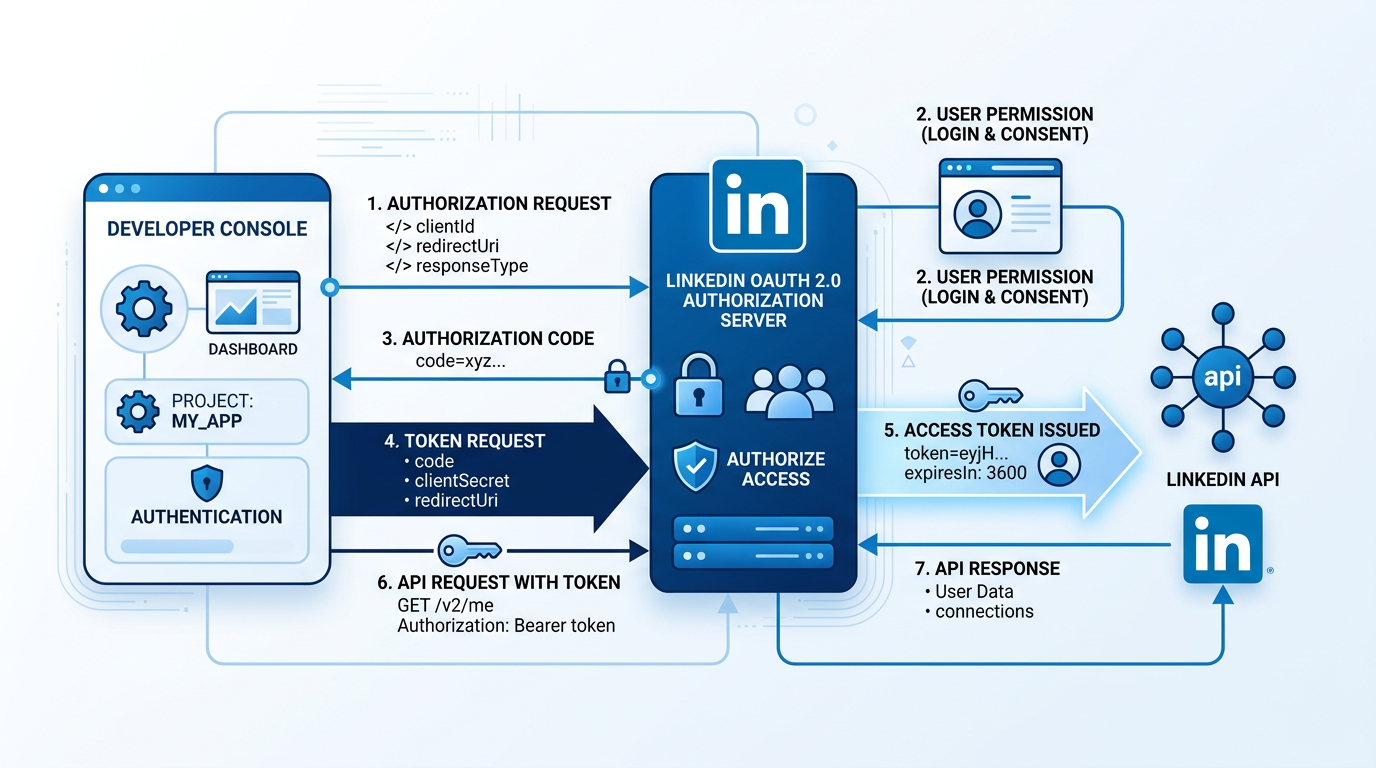
The LinkedIn module lets your AI agent publish posts to your LinkedIn profile or company page. AgentGrow uses OAuth 2.0 to connect securely — you create a LinkedIn App, enter its credentials, and click a button. The platform handles token exchange, encrypted storage, and automatic daily refresh so your connection never expires silently.
How It Works
Instead of manually generating and pasting access tokens (which expire every 60 days), AgentGrow’s OAuth flow works in three steps:
- You create a LinkedIn App and paste the Client ID + Client Secret into AgentGrow
- You click "Connect LinkedIn" — you are redirected to LinkedIn to authorize
- AgentGrow stores the tokens and refreshes them automatically before they expire
What You Will Need
| Field | What it is |
|---|---|
| Client ID | Your LinkedIn App’s public identifier (found in the app settings) |
| Client Secret | Your LinkedIn App’s secret key (shown once when generated) |
| Page URL | (Optional) Your LinkedIn company page URL, so your agent knows where to post |
Prerequisites
- A LinkedIn account
- Admin access to a LinkedIn Company Page (if you want to post as the company rather than your personal profile)
- An AgentGrow account on the Growth or Enterprise plan
Part 1 — Create a LinkedIn App
Go to LinkedIn Developers
Open linkedin.com/developers/apps and sign in with your LinkedIn account.
Create a new app
Click Create app and fill in:
- App name: something like
My Business AgentorAgentGrow LinkedIn - LinkedIn Page: select your company page (required — create one first if needed)
- App logo: upload any square image (your company logo works well)
- Legal agreement: check the box and click Create app
Request the required products
After creating the app, go to the Products tab and request access to the products you need. Each product unlocks specific OAuth scopes:
| LinkedIn Product | Scopes Granted | Use Case |
|---|---|---|
| Community Management API | w_organization_social, r_organization_social | Post on your company page |
| Share on LinkedIn | w_member_social | Post on your personal profile |
| Sign In with LinkedIn using OpenID Connect | openid, profile, email | Display your name/avatar in AgentGrow (optional) |
To post on a company page (most common), you only need Community Management API. "Share on LinkedIn" is needed only if you also want to post on your personal profile.
Product approvals are usually instant. Some may take a few minutes.
Set the OAuth redirect URI
Go to the Auth tab in your LinkedIn App settings. Under OAuth 2.0 settings, add this redirect URL:
Click Update to save. This is where LinkedIn sends you back after authorization.
Copy Client ID and Client Secret
Still on the Auth tab:
- Client ID is shown directly — copy it
- Client Secret — click the eye icon or "Show" to reveal it, then copy
Part 2 — Connect LinkedIn in AgentGrow
Open your Integrations page
Log in to your AgentGrow dashboard at agentgrow.io/user/integrations.
Configure LinkedIn
Find the LinkedIn module and click Configure. You will see a two-step form:
Step 1 — App Credentials & Scopes:
- Paste your Client ID
- Paste your Client Secret
- (Optional) Enter your LinkedIn Page URL (e.g.
https://www.linkedin.com/company/your-company) - Under OAuth Scopes, check only the scopes that match products you enabled in your LinkedIn App:
- Post as Organization + Read Organization — if you added "Community Management API"
- Post as Member — if you added "Share on LinkedIn"
- OpenID Connect, Profile, Email — if you added "Sign In with LinkedIn using OpenID Connect"
w_organization_social and r_organization_social. Selecting scopes for products you have not enabled will cause a "Scope not authorized" error.
Click Save & Continue.
Step 2 — Authorize:
- Click the blue Connect LinkedIn button
- You will be redirected to LinkedIn where you sign in and approve the permissions
- LinkedIn redirects you back to AgentGrow automatically
Verify the connection
After authorization, you will see a green Connected status with your LinkedIn name and profile photo. The token expiry date is displayed — AgentGrow refreshes it automatically before it expires.
Troubleshooting
"Scope not authorized for your application"
This means you selected an OAuth scope in AgentGrow that your LinkedIn App does not have access to. To fix:
- Go to your LinkedIn App → Products tab and note which products show "Added"
- In AgentGrow, click Change credentials & scopes on the LinkedIn module
- Uncheck any scopes whose product is not enabled (see the table in Part 1, Step 3 above)
- Click Save & Continue, then Connect LinkedIn again
For example, if you only have "Community Management API" enabled, select only w_organization_social and r_organization_social.
LinkedIn says "invalid redirect URI"
Make sure you added this exact URL in your LinkedIn App’s Auth settings:
The URL must match exactly — no trailing slash, no http:// (must be https://).
"Share on LinkedIn" product not approved
Go to your LinkedIn App → Products tab and check that "Share on LinkedIn" shows "Added". If it says "Review in progress", wait for approval before trying to connect. Most approvals are instant.
Connection shows "Expired"
AgentGrow automatically refreshes tokens daily. If you still see "Expired":
- Click Reconfigure on the LinkedIn module
- Click Connect LinkedIn to re-authorize
This generates a fresh token immediately.
Agent posts are not appearing on LinkedIn
- Check that the LinkedIn module status shows Configured (green checkmark) on the Integrations page
- Verify the module is not paused (toggle should be green, not gray)
- Check your Dashboard activity feed for any error messages from the agent
How do I disconnect LinkedIn?
Open the LinkedIn module on the Integrations page, click Reconfigure, then click Disconnect. This removes the access token but keeps your app credentials so you can reconnect without re-entering them.
Can I switch to a different LinkedIn account?
Yes. Disconnect the current connection, then click Connect LinkedIn again. When LinkedIn asks you to authorize, sign in with the different account.
📚 Related reading: